Tutorial: Integrate EventReporter with a Custom Database Schema#
Use this tutorial when EventReporter should write into an existing database
schema instead of the built-in SystemEvents layout.
Goal#
At the end of this procedure, EventReporter will write matching Windows events into your own destination table through an ODBC System DSN.
When to choose this tutorial#
Use this path when:
your organization already has a fixed database schema
another application expects specific column names or data types
you want EventReporter to feed an existing integration or reporting database
Do not use this path just because database logging exists. If you want the fastest supported setup or Adiscon-compatible default tables, use Tutorial: Write Windows Events to Microsoft SQL Server instead.
What this tutorial does not do#
This tutorial does not design your schema for you. EventReporter can write to your table, but you must decide the table design, column definitions, indexes, retention strategy, and downstream reporting logic.
Prerequisites#
A reachable database server and a tested ODBC System DSN
A destination table that already exists
Database credentials with permission to insert rows into that table
A clear mapping from EventReporter properties to the destination columns
Example target table#
The exact schema is up to you. For a Microsoft SQL Server example, a custom table could look like this:
CREATE TABLE dbo.IncomingWindowsEvents (
    recorded_at datetime2 NOT NULL,
    source_host nvarchar(255) NOT NULL,
    event_source nvarchar(255) NULL,
    event_id int NULL,
    message_text nvarchar(max) NOT NULL
);
Steps#
Review the destination schema before opening EventReporter.
Confirm the exact table name.
Confirm each destination column name and data type.
Decide which EventReporter property belongs in each column.
Create and test an ODBC System DSN for the target database.
The DSN must point to the database that already contains your destination table.
Complete the DSN wizard and use its built-in test before you continue.
Create or choose the ruleset whose events should be stored.
Add a Write to Database action to that ruleset.
Configure the connection settings.
Select the ODBC System DSN.
Enter credentials if the DSN or driver requires them.
Use Verify Database to confirm connectivity.
Point the action to the existing destination table.
Enter the custom table name.
Do not use Create Database for this path unless you intentionally want the built-in default schema instead of your own table.
Replace the default field list with mappings that match your schema.
For the example table above, a practical starting point is:
recorded_at->DateTime->timegeneratedsource_host->varchar->sourceevent_source->varchar->sourceevent_id->int->idmessage_text->text->msg
If a string column is shorter than the source property, use the property replacer to truncate or transform the value deliberately. For example,
%msg:1:200%stores only the first 200 characters of the message.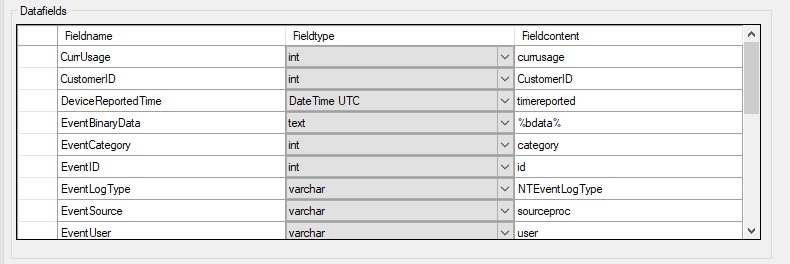
The datafields tab is where you replace the default mapping with the column names, data types, and event properties that match your own schema.
Save and apply the configuration.
Restart the EventReporter service if your environment or workflow requires it.
Trigger a matching Windows event.
Query the destination table and verify the inserted data.
SELECT TOP (10)
    recorded_at,
    source_host,
    event_source,
    event_id,
    message_text
FROM dbo.IncomingWindowsEvents;
Verification#
The ODBC System DSN test succeeds.
The action’s Verify Database button succeeds.
A test event inserts a row into the existing custom table.
Each value appears in the expected destination column with the expected data type and length.
Common issues#
Leaving the default field list unchanged while targeting a custom table
Using the wrong field type for a destination column
Forgetting that long text may not fit into a short
varcharcolumnClicking Create Database even though the goal is an existing custom schema
Assuming Adiscon tools that expect the default schema will continue to work unchanged against the custom table
Next step#
If the custom integration path works, continue with:
If you later decide that you need the built-in Adiscon table layout instead of your own schema, switch to Tutorial: Write Windows Events to Microsoft SQL Server.