Tutorial: Write Windows Events to Microsoft SQL Server#
Use this tutorial when EventReporter should store matching Windows events in Microsoft SQL Server through an ODBC System DSN and the built-in default database schema.
Goal#
At the end of this procedure, EventReporter will write matching events into a
default SystemEvents table in Microsoft SQL Server.
Why this tutorial uses the default schema#
This is the fastest supported path for a first production deployment. It keeps the built-in field mapping, works with the Create Database button, and is the safest choice if you later want Adiscon-compatible tooling or predictable support behavior.
Prerequisites#
Microsoft SQL Server and SQL Server Management Studio (SSMS)
Microsoft ODBC Driver 18 for SQL Server, or a compatible Microsoft SQL Server ODBC driver installed on the EventReporter host
Database credentials with permission to connect, insert rows, and create the default tables
Access to the EventReporter configuration client on the host where EventReporter runs
Steps#
Create the target database in SQL Server.
Open SSMS and connect to the SQL Server instance that should receive the EventReporter data.
Create an empty database for this integration.
Keep the database name available for the ODBC setup.
Create and test an ODBC System DSN on the EventReporter host.
Open Data Sources (ODBC) on the EventReporter host.
Create a new System DSN for SQL Server.
Select the Microsoft SQL Server driver that matches your environment, for example Microsoft ODBC Driver 18 for SQL Server.
Point the DSN to the SQL Server instance and database created in the previous step.
Complete the DSN wizard and use its built-in connection test.
Create or choose the EventReporter ruleset whose events should be stored.
Add a Write to Database action to that ruleset.
Configure the database action.
Select the ODBC System DSN you created.
Enter the database credentials if the DSN or driver requires them.
Keep the default table name
SystemEvents.Keep the default field list unless you intentionally need a custom schema.
Leave the SQL statement type at the normal
INSERTpath unless you have a verified SQL Server stored-procedure design.
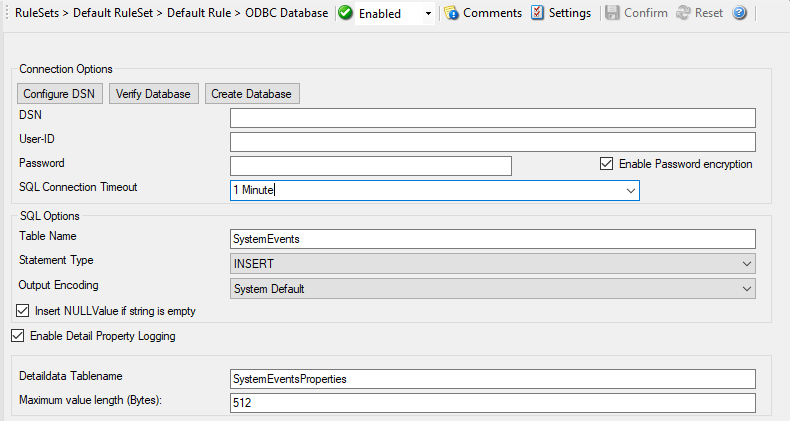
The connection tab is the main place to select the DSN, enter credentials, verify the connection, and create the default tables.
Create the default database tables.
Use the action’s Verify Database button first.
If the connection test succeeds, click Create Database.
Confirm that EventReporter creates the default tables in the selected SQL Server database.
Save and apply the configuration.
Restart the EventReporter service if your environment or workflow requires it.
Trigger a matching Windows event.
Verify the inserted rows in SQL Server.
Open SSMS and query the
SystemEventstable.Confirm that the test event appears there.
SELECT TOP (10) *
FROM dbo.SystemEvents;
Verification#
The ODBC System DSN test succeeds.
The action’s Verify Database button succeeds.
The Create Database button creates the default tables.
A test event produces a new row in
SystemEvents.
Common issues#
The DSN was created as a user DSN instead of a System DSN.
The DSN points to the wrong SQL Server instance or database.
The SQL Server account can connect but does not have permission to create tables or insert rows.
The default field list or table name was changed even though the goal is the default supported schema.
Another tutorial path is actually needed because the destination must be an existing custom table.
Next step#
If the default schema path works and you want to keep it, continue with: